If you’ve upgraded your Windows machine to Windows 11, you’ve probably noticed thetaskbaris a bit different now. It’s not as configurable as the taskbar of past Windows operating systems, and some may find it not to be as useful. The new taskbar is very similar toApple’s macOS taskbar system. Live Tiles are no more, your apps don’t display their full name, and your taskbar is now stuck at the bottom of the screen. While this may come as a blow to users who enjoyed placing the taskbar at the side or top of the screen, hope isn’t lost when it comes to customizing the Windows 11 taskbar.
Open-source developers immediately took the challenge of creating apps that allow you to change the Windows 11 taskbar the day after the OS was released, and Microsoft has been patching and adding customizationfeatures to the Windows 11taskbar for nearly three years now. If you’re curious as to how to take control of your Windows 11 taskbar and make it truly yours, you’ve come to the right place. Read on to find out all the different ways I utilize the customization options of the Windows 11 taskbar to make it truly my own.

How to run Windows XP on your iPad
A new app lets you run a Windows XP virtual machine on your iPad, but you’ll need to overcome a few hurdles to get it to work.
Pin your most-used apps to the taskbar
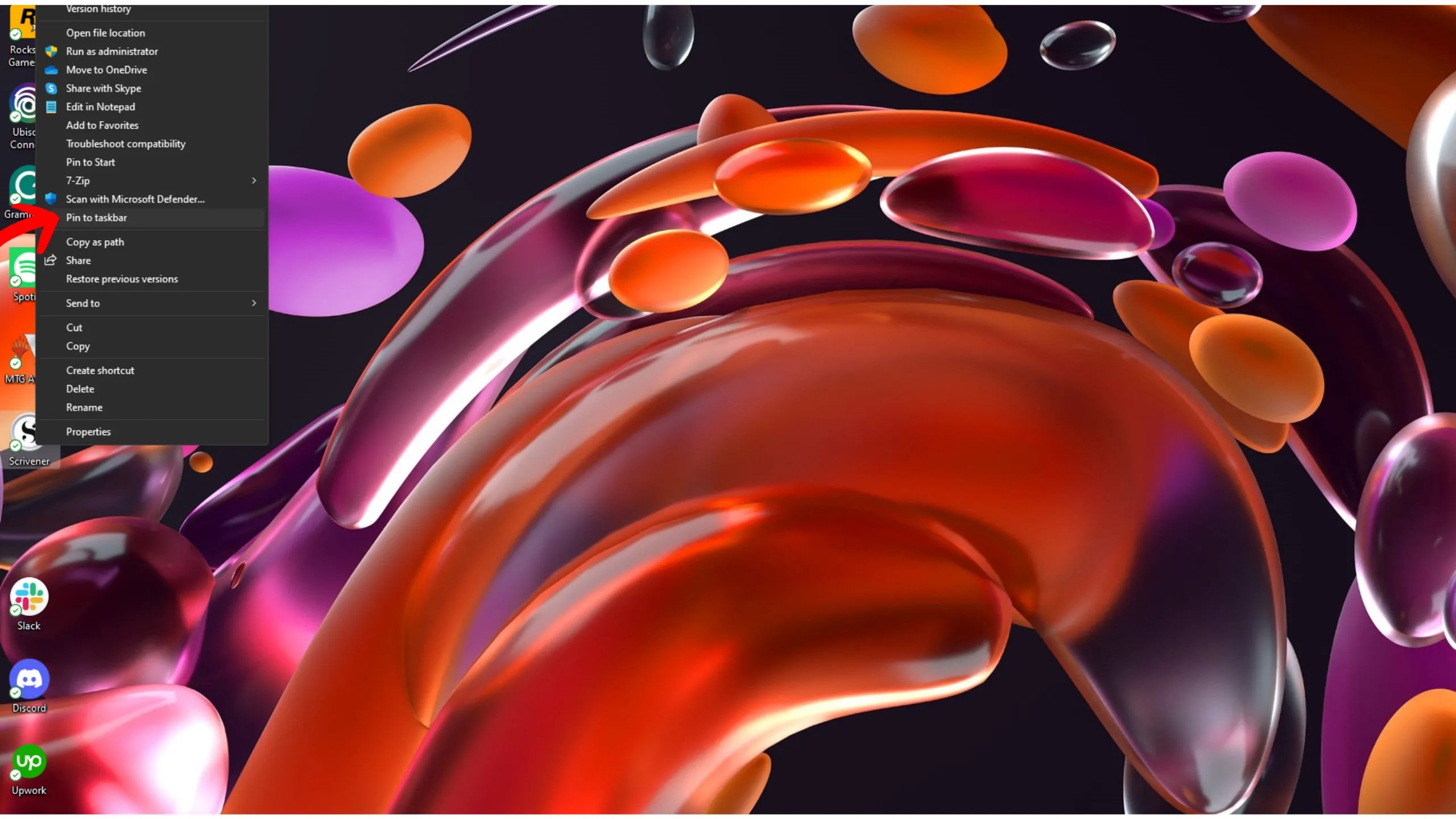
I pin my most-used work apps to the taskbar for easy access. My taskbar holds the icons for my Slack, Microsoft OneNote, OneDrive, and Chrome, along with Steam for after-work wind-down sessions. There are a couple of different ways you can go about pinning an app to your taskbar, and it mostly depends on whether the app you want to pin is running or not.
15 must-try Windows 11 keyboard shortcuts that I find useful
My favorite Windows 11 keyboard shortcuts – for streamlining work, browsing, and writing.
Removing unwanted apps from the taskbar
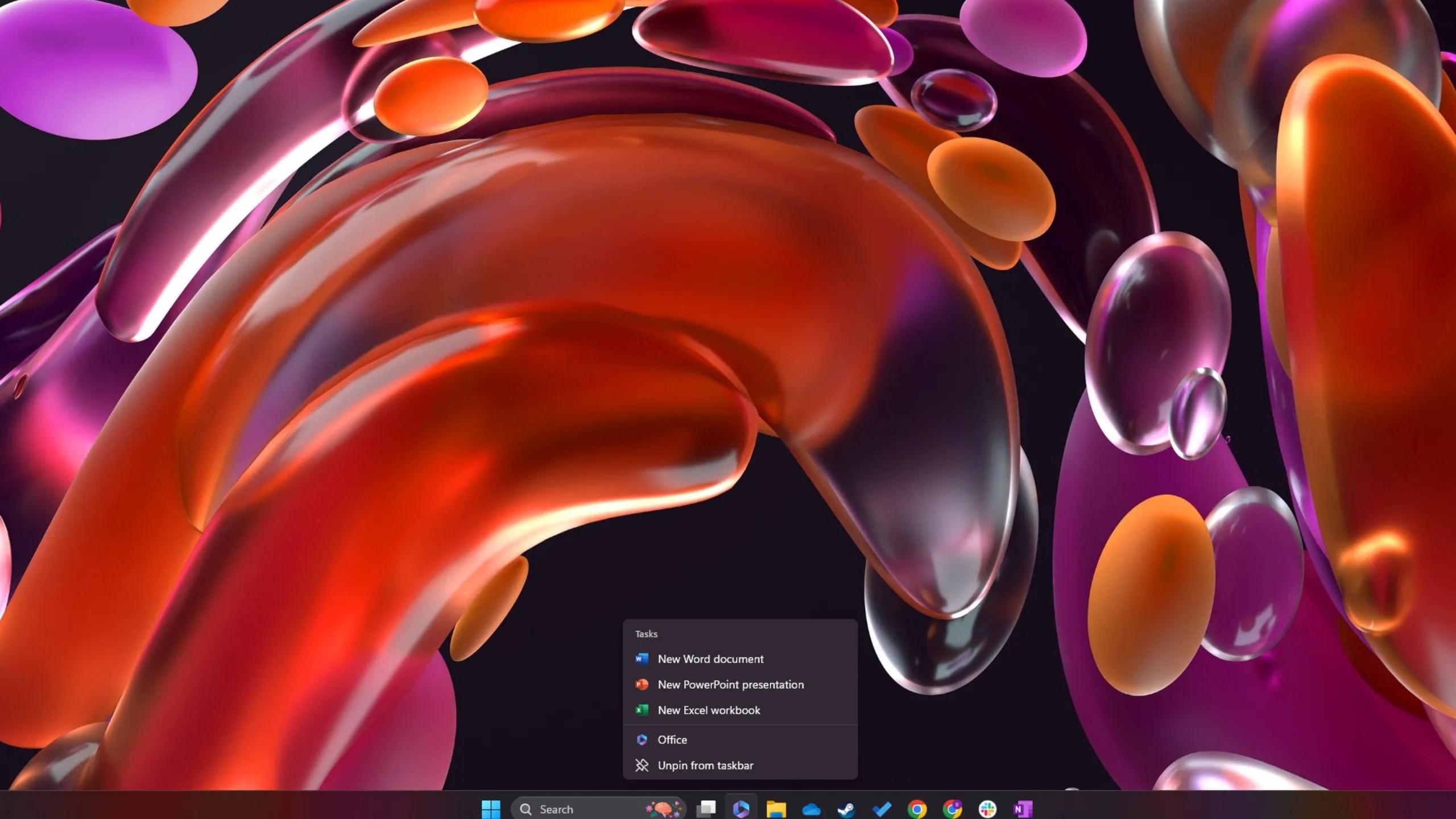
Apps that are already in your taskbar are easy to remove. If you bought a pre-built PC or a laptop, there’s a solid chance there’s a good deal of bloatware sitting in your taskbar. Luckily, all you need to do to remove these app icons from your taskbar in Windows 11 is to right-click the icon and clickUnpin from taskbar.Anytime I buy a new laptop, this is one of the first things I do. I go through all the bloatware that came pre-installed, determine which of it is useful (it rarely is), and I remove the apps from the taskbar and delete the application.
How to disable ads from showing up in your Windows 11 Start Menu
Microsoft is introducing more ads to its Start Menu experience – here’s how to turn them off.
Move the position of apps on the taskbar
I’ve been using Windows since the olden days of Windows 98. For as long as I can remember, the Start menu was always in the lower left-corner of the screen. If you don’t also use a Mac (macOS centers applications), then you might find yourself drifting to that lower left corner of the screen whenever you want to open an app. Instead of re-training your brain, Microsoft allows you to re-orient your taskbar’s apps to the lower left. Here’s how:
This will move everything on the taskbar to the left corner of your screen, just as it used to be in prior Windows operating systems.
The system tray
That taskbar behaviors menu you just opened holds the key to how Microsoft allows you to customize your Windows 11 taskbar. From here, you can hide the taskbar, change the visual effects of the apps on your taskbar by turning badges on or off and flashing on taskbar app icons. You can also turn on and off system tray icons in this location.
Your system tray is ideal for programs that receive notifications. I keep Skype, Discord, Microsoft Teams, and apps that I use for system updates or benchmarks in the System Tray. Most of the icons that you’ll find here are permanent, but they can be hidden in the taskbar behavior menu underOther system tray icons.

Further customization with ExplorerPatcher
There are a few open-source apps that I’ve been using over the years to further customize my Windows 11 taskbar. My absolute favorite of these isExplorerPatcher. It’s a completely free, open-source app that lets you get a taskbar that not only looks like the Windows 10 taskbar on Windows 11, but also packs a large suite of further customization options.
ExplorerPatcher allows you to move the taskbar to the left or right side of the screen and brings the vertical taskbar experience back to Windows 11. I like seeing the full names of running applications on my taskbar, like you could in Windows 10, and ExplorerPatcher makes this possible in Windows 11 by default.
ExplorerPatcher doesn’t just improve on the taskbar, but it brings a whole suite of features that allow me to make my Windows 11 OS feel more like Windows 10 (or 7). You can download the program from the developers GitHub, and then you’re ready to go. Simply run the .EXE file, and install.
Once you have ExplorerPatcher installed, it will automatically convert your taskbar to the Windows 10 taskbar. you may right-click on your taskbar and selectProperties,which will bring up the ExplorerPatcher customization window. From here you can make all the changes that ExplorerPatcher allows you to, which includes changes to how the File Explorer looks and operates, getting the old Windows 10 weather widget back, and changes to how your clock and calendar function if you want more of that Windows 10 experience on Windows 11.

I keep most of the default features active on ExplorerPatcher, and I personally love switching my alt-tab back to Windows 10 style as well as the file explorer. Thanks to ExplorerPatcher, I’m able to disable the Windows 11 context menu, and give myself quicker access to shell extensions, as well as give myself the text for things like copy and paste instead of new icons. I also use it to swap the Windows 11 tablet-focused ribbon design in File Explorer for the Windows 7 command bar, which still holds up great in 2024.
